 SwingLab Golf Swing Drills
One drill at a time.
A better swing over time.
No range, no filming. Practice at home or in the office with just a little space. Spend 3–5 minutes a day following one animated drill, and build balance, rotation, weight shift and tempo over 28 days.
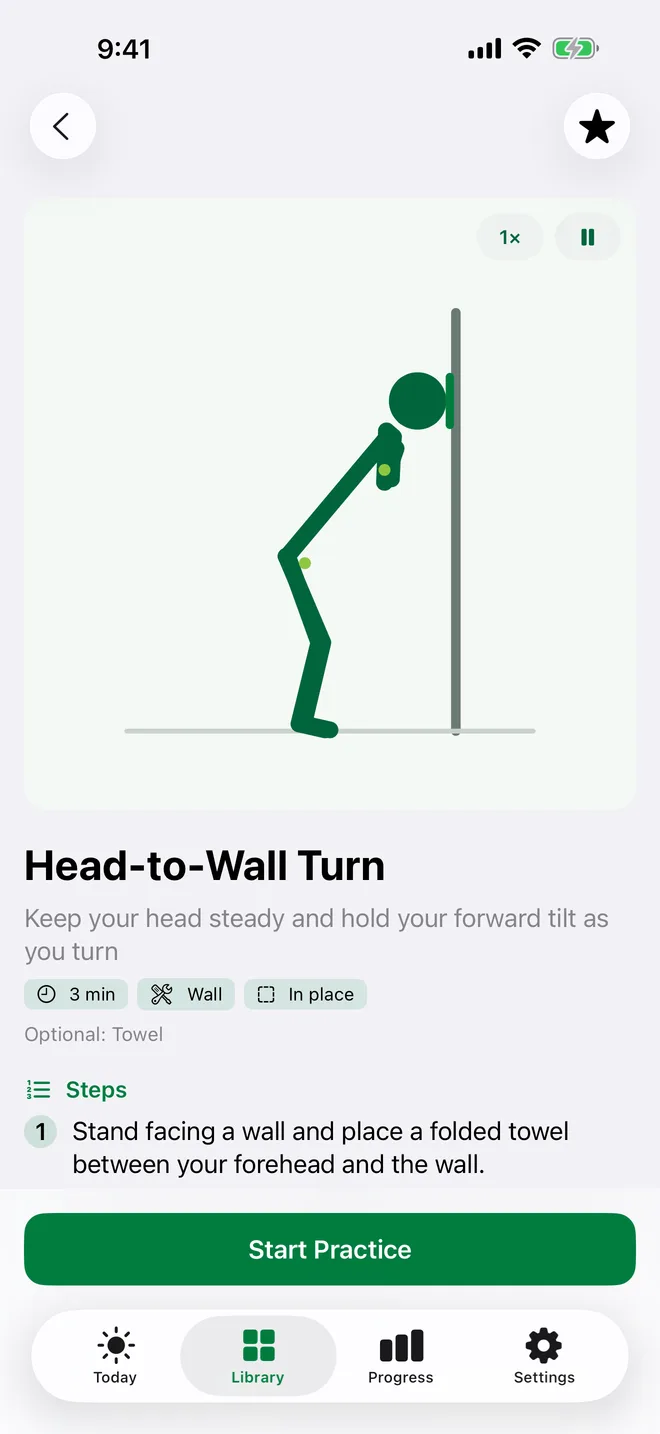
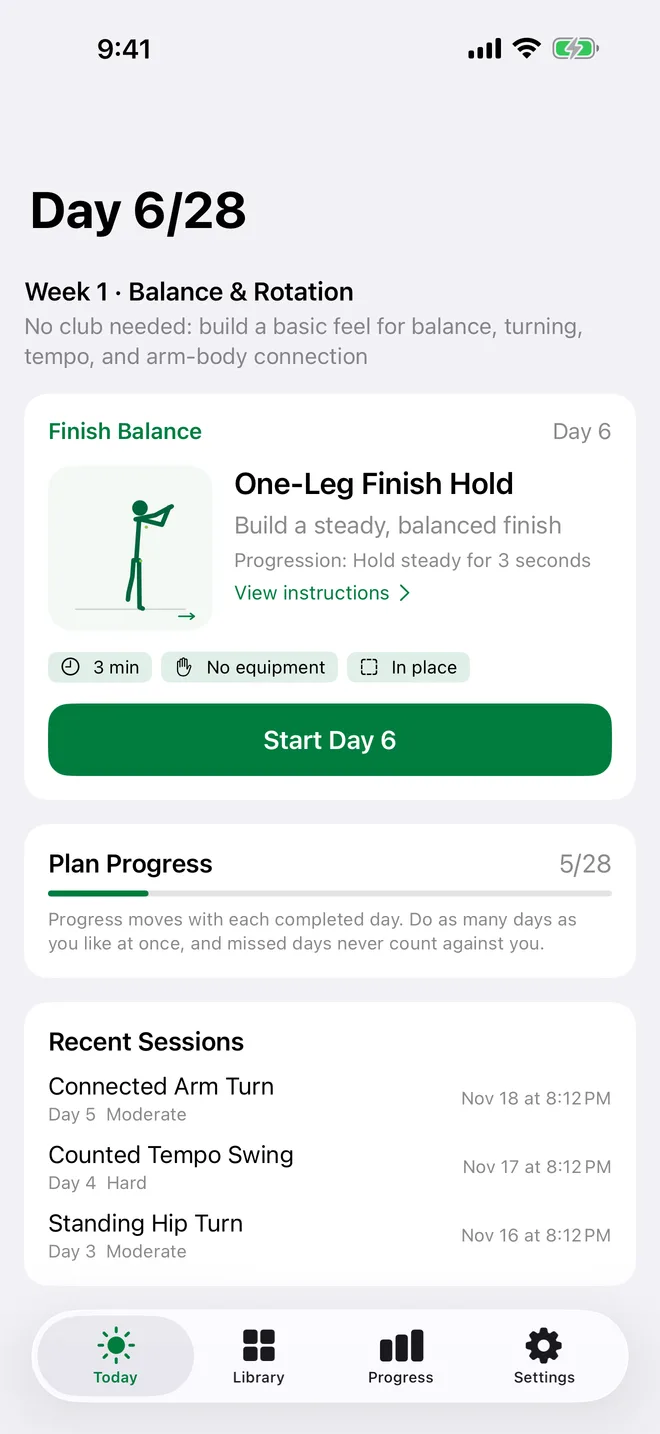
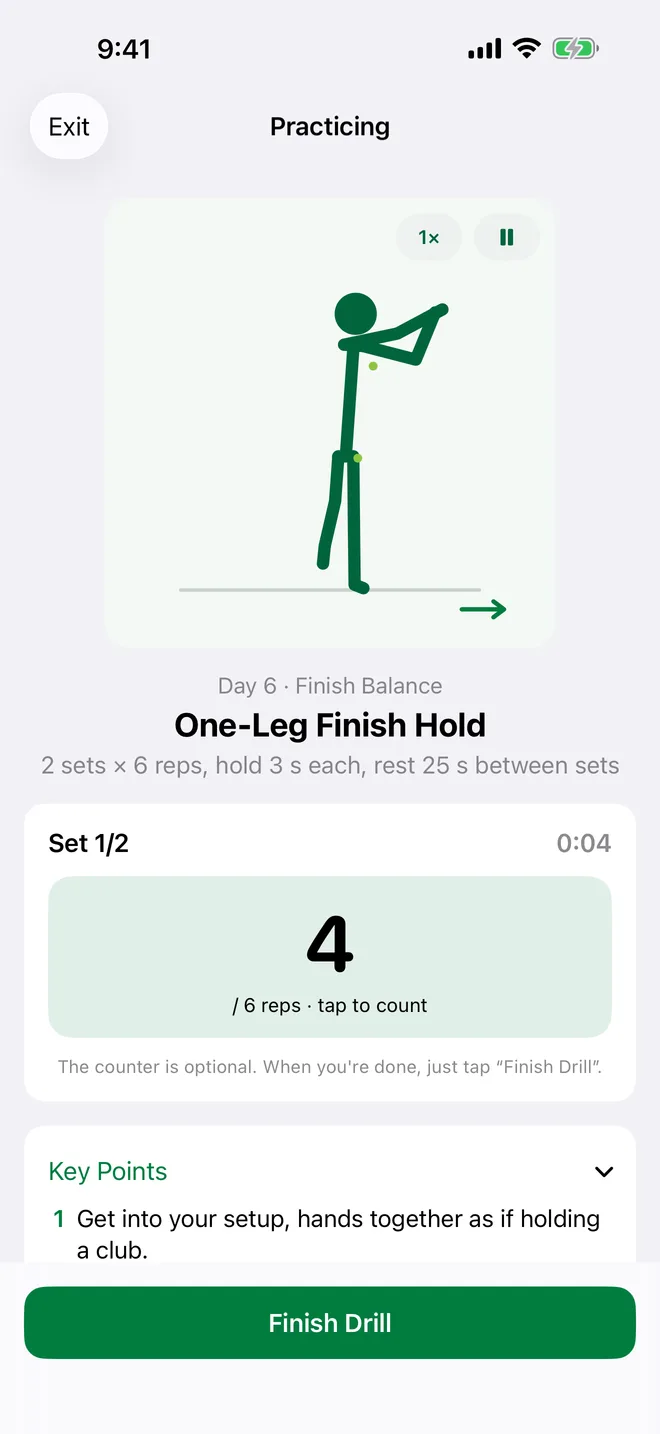
Open it, practice, log it
One drill a day. No guessing what to work on, no propping up your phone to film yourself.
Watch
Every drill has a looping animation you can pause or slow to 0.5×, plus 3–5 key steps and common mistakes.
Practice
An optional counter tracks reps and rest between sets. Or skip it and just tap "Finish Drill" when you're done.
Log
Rate the difficulty, add a note, and your plan moves forward a day. Feeling good? Go straight on to the next day.
Four phases, one focus a week
The plan moves forward each time you complete a day, not by the calendar. Do several days at once or take a break; missed days never count against you. Day 7 of each week is a review day to compare how it feels.
Balance & Rotation
No club needed: build a feel for balance and turning
- Feet-Together Balance Swing
- Cross-Arm Shoulder Turn
- Standing Hip Turn
- One-Leg Finish Hold
Posture & Alignment
Set up well and keep your tilt as you turn
- Club-on-Spine Hip Hinge
- Alignment Clubs
- Head-to-Wall Turn
- Hip-to-Wall Turn
Weight Shift & Sequence
Shift, then turn, without standing up early
- Lead-Foot Step Transition
- Hip Bump to Chair
- Sidearm Throw Motion
- Hip-to-Wall Turn
Adding the Club
Bring the feel from weeks 1–3 to the club
- Grip Repetition
- Towel Tempo Swing
- Hanger Drill
- Pump Drill
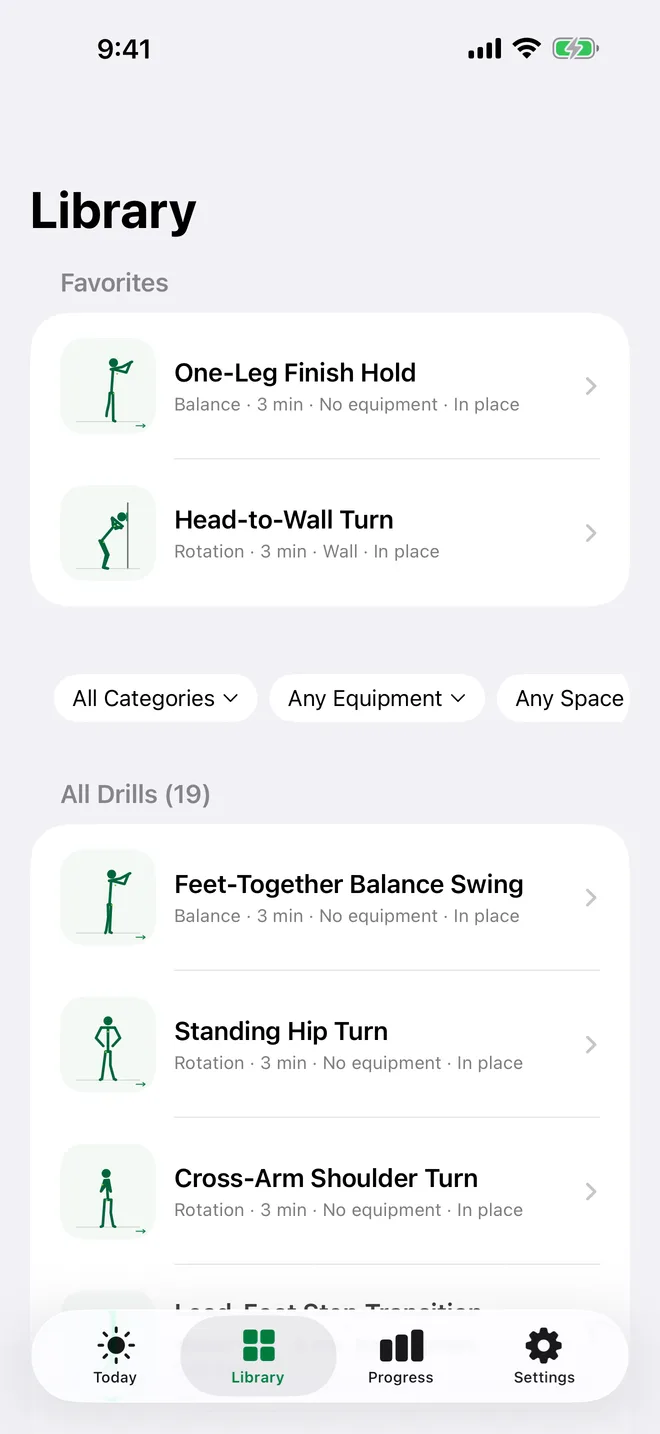
19 drills, each with an animation that shows you how
- Face-on, side and top-downEach drill uses the clearest angle, with pause and slow motion
- Right- or left-handedChoose left-handed and every animation is mirrored, with left and right switched in the instructions
- Simple props onlyMost drills need nothing. Drills that use a club, towel, chair, wall or hanger always have a no-equipment alternative
- Pick by spaceIn place, one step, or full swing space, so there's always something you can do at home or at work
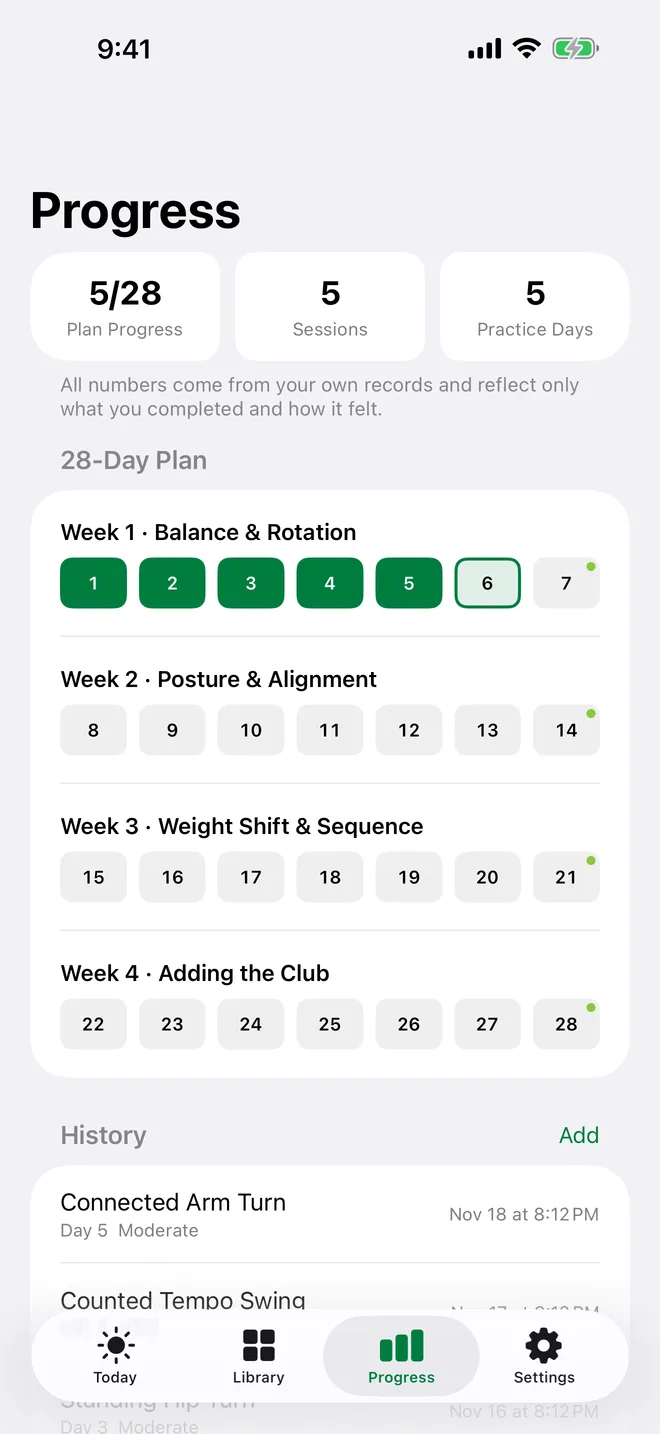
See your practice at a glance
- 28-day plan gridSee every day you've completed, and redo any day
- Session historyDifficulty and notes for every session. Add missed sessions; deleting one never changes your progress
- FavoritesKeep the drills you like at the top of the library
- Review daysOn days 7, 14, 21 and 28, check how your feel has changed
Take a look inside
Ready to test it on the course?
Finish the 28-day plan, then book a round on TeeLab and see how your swing has changed.
Frequently asked questions
Is it free?
Yes. No in-app purchases and no ads.
Do I need an account?
No. Just open the app. Everything stays on your phone and is never uploaded.
What equipment do I need?
Week 1 and all review days need nothing. Later drills use things you already have, like a club, towel, chair, wall or hanger. Without them, every equipment day has a no-equipment version that counts just the same.
How much space do I need?
Most drills work in place: arms out without touching anything (about 1.5 × 1.5 m). A few need room for one step, and swinging a club needs space with no people or breakables nearby. You can filter the library by space.
How many plan days can I do in a day?
As many as you like. Finish one day and go straight on to the next. Skip a few days and just pick up where you left off.
Does the app analyze my swing?
No. SwingLab doesn't use the camera and doesn't judge your form. It gives you drill demos and a practice plan; progress and feel come from your own records.
Does it work for left-handed golfers?
Yes. Choose left-handed in Settings and all animations are mirrored, with left and right switched in the instructions.